Scrolling capture
Capture content beyond the visible screen and bring long pages together in one image.
Capture a region or a full scrolling page. Add clear annotations, hide sensitive details and save the result where it belongs.
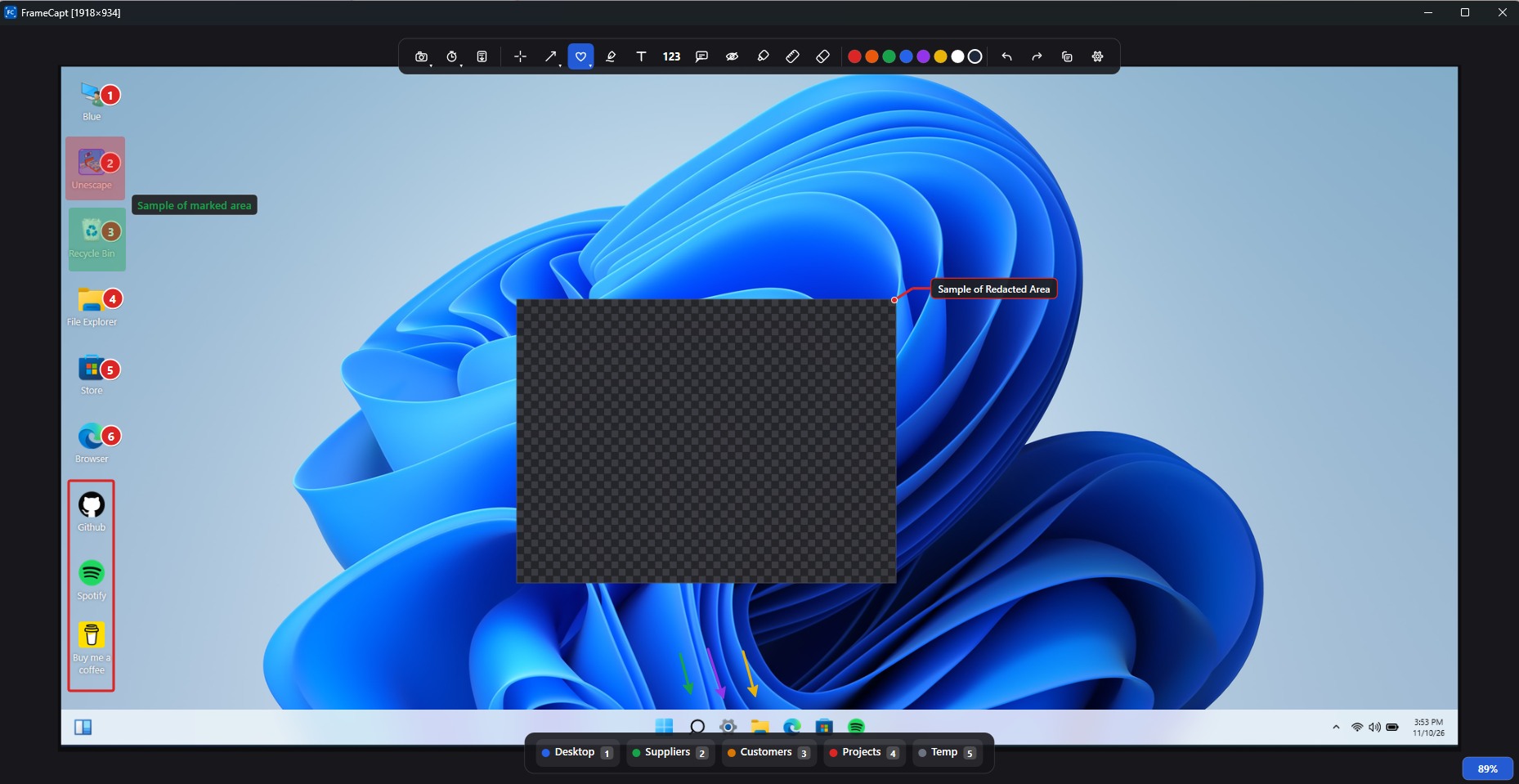
FrameCapt brings the essential tools together, so a screenshot can become a clear instruction, a useful report or a piece of documentation.
Capture content beyond the visible screen and bring long pages together in one image.
Select any area of the screen and capture exactly what you need.
Choose an application window for a clean capture without manually cropping the result.
Set a short delay before capture when you need time to open a menu or prepare the screen.
Point directly to important details with arrows, lines and directional markers.
Add rectangles, circles and other shapes to frame areas and highlight details.
Choose colours for annotations to distinguish steps, warnings and important information.
Build clear, ordered instructions with numbered markers.
Add labels, notes and hand-drawn marks directly to your screenshot.
Obscure private or confidential information before sharing an image.
Save directly to predefined folders without repeatedly navigating save dialogs.
Refine annotations and correct edits as you work.
A native desktop utility designed to fit naturally into a Windows workflow.
Capture, annotate and save without switching between separate tools.
Interface support for 10 languages, as listed in the original product specifications.
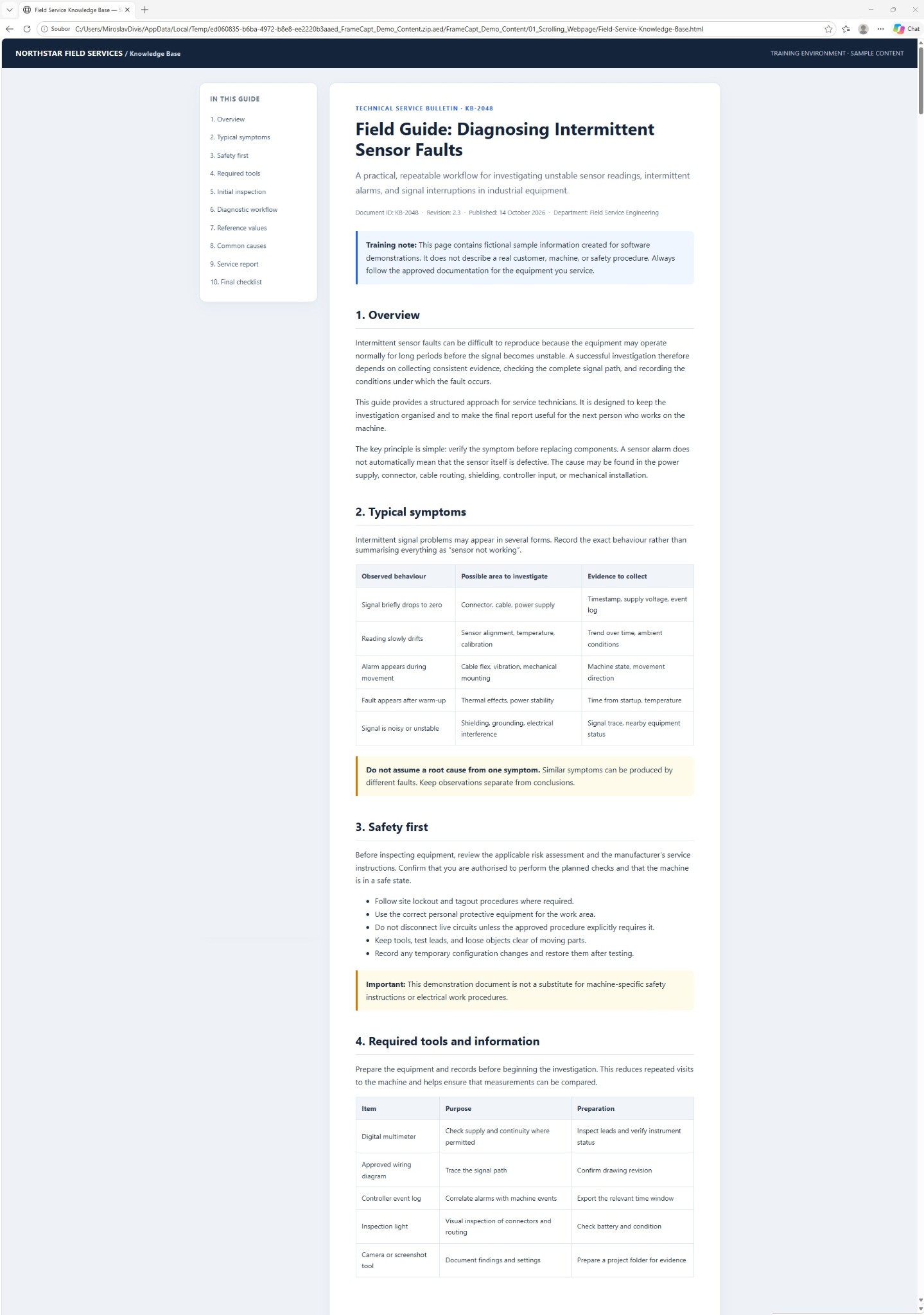
Useful information rarely fits neatly inside one screen. Capture long web pages and technical documents as a single image, ready to review, annotate or share.
Highlight the important part, number the steps and cover information that should remain private. Then send the result to the folder you use for that kind of work.
FrameCapt is built as a native desktop application, with a focus on responsive operation and a local-first workflow.
Performance and package figures reflect the specifications previously provided for FrameCapt. Actual values may vary by release and system configuration.
A few details about how FrameCapt fits into your day-to-day work.
Yes. Scrolling capture is designed for content that extends beyond the visible screen, such as long web pages and technical guides.
Yes. Add arrows, shapes, numbered markers, text and freehand annotations, then save the finished image.
FrameCapt includes redaction and blur tools. Always review the exported image to confirm sensitive details are fully concealed before sharing.
Yes. One-click save profiles let you choose predefined destinations for different types of screenshots.
The original product specifications describe FrameCapt as an offline application. Check the release notes for any requirements specific to your version.
For product questions, feedback or technical support, get in touch.
Capture the full picture. Add the detail. Save it where it belongs.
Download FrameCapt